End User Guide: Staff & Permissions
This chapter covers firm user management. LawDesk does not provide a separate Super Admin “Users & Roles” module; firm accounts are managed here.
#Create a staff user
-
Sign in as Firm Admin (or a manager with Staff access).
-
Open Staff.
-
Click Add / Create.
-
Enter:
| Field |
Notes |
| Name |
Display name |
| Email |
Login email (unique) |
| Password |
Temporary password; ask them to change later |
| Role |
See roles below |
| Permissions |
Tick the modules they may use |
-
Save. Share the login URL (/login) and credentials securely.
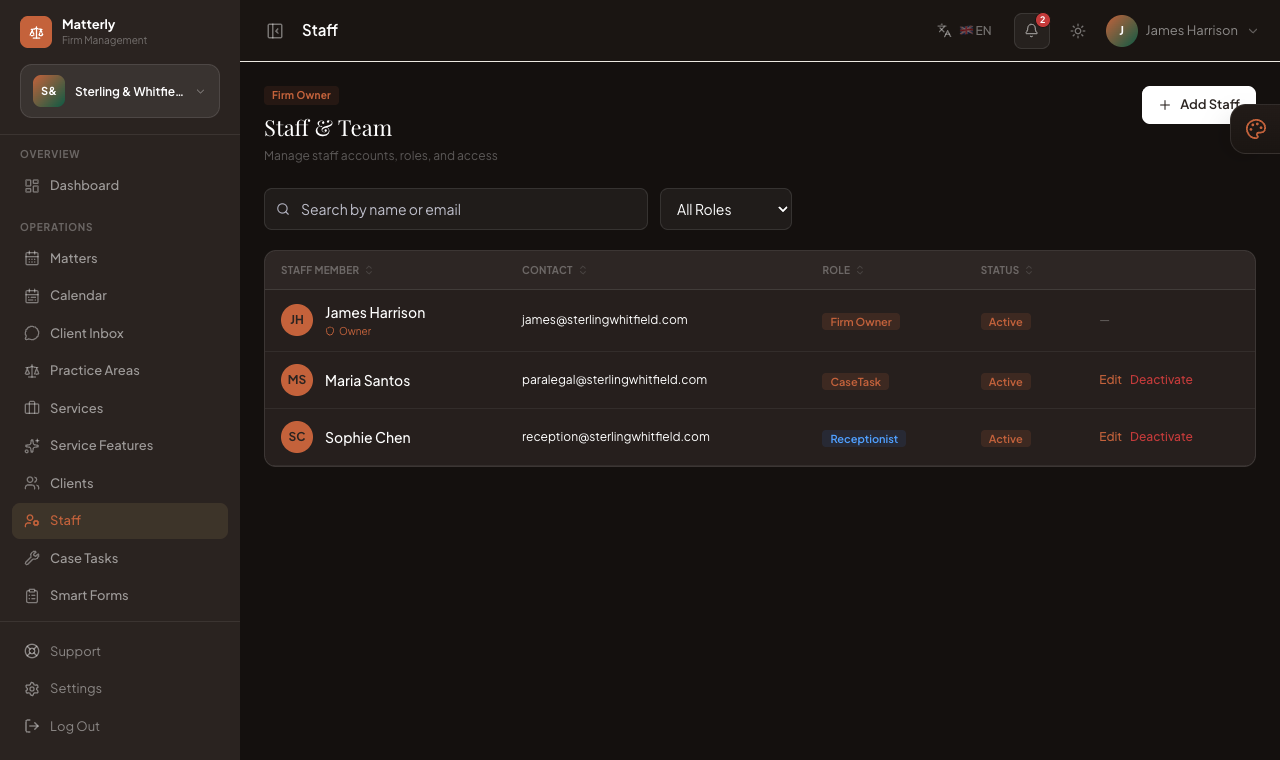
The Add Staff form: set the account details and Role at the top; the Module Access section below is where you tick exactly which menus this person can use.
#Roles
Firm staff roles commonly include:
| Role |
Typical use |
| Manager |
Broad access; often same as firm admin style control |
| Receptionist |
Matters, clients, start/out |
| CaseTask |
CaseTask board and service status |
| Accountant |
Invoices, expenses, reports |
| Restaurant |
Limited ops if enabled for your workflows |
| Maintenance |
Maintenance-related case-tasks tasks |
Exact permission checkboxes matter more than the role label, so always set permissions deliberately.
#Permissions
Permissions map to sidebar menus, for example:
| Permission area |
Menus unlocked |
| Matters |
Matters, Client Inbox |
| Services |
Practice Areas |
| Clients |
Clients |
| CaseTask |
CaseTask |
| Invoices |
Invoices, Expenses |
| Reports |
Reports |
| AI |
AI Assistant, AI Staff, Knowledge Base |
| Website |
Website Builder, Languages, Campaigns, Reviews |
| Settings |
Settings, Staff |
If a menu is missing for a user, edit their staff record and enable the permission.
#Firm assignment
- Each staff user belongs to one firm (the firm where they were created).
- They cannot switch to another firm from the sidebar.
- Super Admins use Impersonate on the Firms page to enter a firm without a staff login.
When Super Admin creates a firm, the form also creates that firm’s first admin user (manager). That person is the primary Firm Admin login.
#Best practices
- Use a unique email per person.
- Give receptionists matters + clients, not full settings.
- Give case-tasks only case-tasks access.
- Remove or disable staff who leave.
- Never share the Super Admin password with firm staff.
#Related pages